






Google Gemini 3 "Nano Banana Pro": New Features & Tutorial

Just days ago, Google DeepMind dropped a massive update to its generative AI lineup, officially releasing Gemini 3 Pro Image Codenamed 'Nano Banana Pro,' this model represents a total overhaul. If you thought you knew what Gemini was capable of, think again. We are diving straight into this hands-on guide to show you why this is the biggest AI news of the week.
- What’s New in Nano Banana Pro?
- How to Access Nano Banana Pro in Gemini
- Best Alternative: MyEdit AI Image Editor
- FAQs About Gemini 3 Pro Image
What’s New in Nano Banana Pro?
What is Nano Banana Pro?
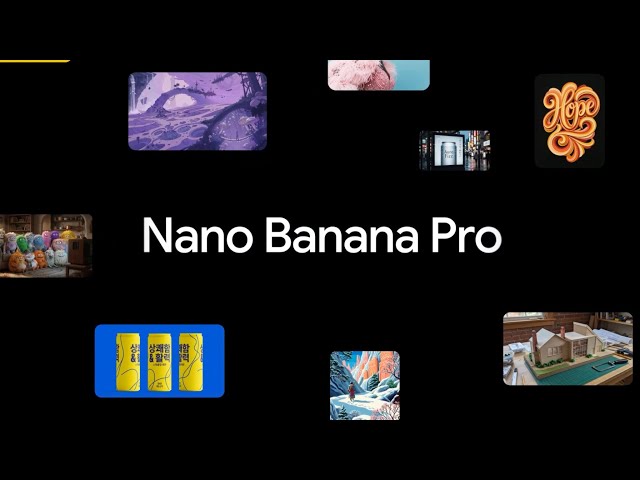
Google DeepMind just released Gemini 3 Pro Image (also known as 'Nano Banana Pro'). This is a huge step forward for AI images. While the older version (Nano Banana) was all about being fast, this new 'Pro' version is all about quality and details.
It features impressive breakthroughs, including mastering the art of text rendering, studio-level camera control, unprecedented character consistency, grounding in real-world data, and native 4K resolution.
Key Advanced Features Explained
Mastering the Art of Text Rendering:
The days of "AI gibberish" are finally over. Nano Banana Pro has cracked the code on text generation. Whether you need a neon signboard, a product label, or a complex infographic, the model can now render legible, correctly spelled text in various fonts and styles. This makes it immediately viable for marketing mockups and poster designs.
 Source: Google
Prompt:
Make 8 sophisticated minimalistic logos, each is a fun food word, and make letters from realistic food to express the meaning of this word. composition: a rendering of all logos on a single solid white background.
Studio-Level Camera Control:
Creators can now act as virtual photographers. The model understands granular instructions regarding camera angles, depth of field, focal length, and lighting. You aren't just asking for a "picture of a cat"; you can request a "low-angle, wide-shot with soft bokeh and cinematic backlighting," and the AI will adhere strictly to those physical parameters.
 Source: Google
Prompt:
Focus on man's hand, blur his face
Unprecedented Character Consistency:
Nano Banana Pro can maintain character consistency across multiple generations. You can generate the same subject in different poses, outfits, or environments without their facial features morphing into someone else. It supports blending up to 14 reference images, allowing for highly specific style transfers and character retention.
 Source: Google
Prompt:
A medium shot of the 14 fluffy characters sitting squeezed together side-by-side on a worn beige fabric sofa and on the floor. They are all facing forwards, watching a vintage, wooden-boxed television set placed on a low wooden table in front of the sofa. The room is dimly lit, with warm light from a window on the left and the glow from the TV illuminating the creatures' faces and fluffy textures. The background is a cozy, slightly cluttered living room with a braided rug, a bookshelf with old books, and rustic kitchen elements in the background. The overall atmosphere is warm, cozy, and amused
Grounded in Real-World Data:
Leveraging the power of Gemini 3, this model connects with Google Search to "ground" its generations in reality. This means it can generate accurate data visualizations, charts, and educational diagramsbased on real-time information, rather than hallucinating plausible-looking but factually incorrect graphics.
 Source: Google
Prompt:
Modern, clean, and minimalist flat lay photography illustrating Sir Isaac Newton's theory of light and color, presented on a seamless, matte light gray background. The composition follows a precise, geometric flow from left to right. All annotations are rendered in an ultra-clean, minimalist sans-serif font. Simple, numbered labels—"01", "02", "03", "04" - mark each stage of the process. The concept is a modern visualization of the experiment from Newton's 1671 letter, the content of which can be referenced here: https://hti.osu.edu/sites/hti.osu.edu/files/Sir-Isaac-Newton_Letter-Theory-Light-Colors.pdf The overall mood is scientific, precise, and elegant. The image is shot from a top-down bird's-eye view with bright, perfectly even, shadowless studio lighting to create a clean, high-tech aesthetic. Format 16:9
Native 4K Resolution:
Stepping up from standard HD, Nano Banana Pro supports native generation in 2K and 4K resolutions. This jump in fidelity brings out intricate textures—from skin pores to fabric weaves—making the output suitable for high-quality print and commercial display.
 Source: Google
Prompt:
Zoom in on this image, maintaining a 16:9 aspect ratio
-
Resize with Precision (Aspect Ratios):
Nano Banana Pro gives you native control over the canvas, allowing you to switch aspect ratios at will. Whether you need a 9:16 vertical shot for a social story or a cinematic 21:9 widescreen for a header, the model adapts your visuals perfectly for any platform without losing detail.
 Source: Google
Prompt:
Change aspect ratio to 1:1 by reducing background. The character, remains exactly locked in its current position
-
Play with Color and Lighting:
Step into the role of a virtual director. You are no longer limited to the AI's default lighting; now you can granularly adjust color grades and lighting directions. Want to shift a scene from a sunny afternoon to a moody, noir-style night? Nano Banana Pro handles these dramatic alterations with physics-based accuracy, giving you total atmospheric control.
 Source: Google
Prompt:
Generate an image with an intense chiaroscuro effect. The man should retain his original features and expression. Introduce harsh, directional light, appearing to come from above and slightly to the left, casting deep, defined shadows across the face. Only slivers of light illuminating his eyes and cheekbones, the rest of the face is in deep shadow
-
Design, Style, Standardize:
This is where the model transforms from a toy into a productivity engine. It bridges the gap between concept and reality, capable of turning rough scribbles into polished products or loose sketches into 3D-rendered architectural visualizations. For brands, this means you can finally standardize a specific "look and feel" across hundreds of generated assets.
 Source: Google
Prompt:
Transform the simple sketch into a realistic car, follow creative direction of the sketch and use the colors and texture from the uploaded image
-
Translate and Localize Your Ideas:
Global marketing just got effortless. Nano Banana Pro understands the semantic context of your image, allowing you to generate localized text or translate existing text directly inside the visual. You can instantly see what a product packaging looks like in Japanese or Spanish, creating ready-to-use assets for international markets while preserving the original design integrity.
 Source: Google
Prompt:
Translate all the English text on the three yellow and blue cans into Korean, while keeping everything else the same


Nano Banano Pro VS Nano Banana
| Feature | Nano Banana (Standard) | Nano Banana Pro (Professional) |
|---|---|---|
| Official Model | Gemini 2.5 Flash Image | Gemini 3 Pro Image |
| Generation Speed | Flash Speed (Sub-second) | Thinking Speed (Reasoning-heavy) |
| Max Resolution | 1024x1024 (1K) | Native 2K / Upscale to 4K |
| Text Rendering | Good (Short phrases) | Flawless (Multilingual, long paragraphs) |
| Reference Inputs | Basic Image-to-Image | Up to 10 Reference Images |
| Consistency | Single Character | 10+ Characters in one scene |
| Camera Control | Prompt-based only | Granular Control (Focal length, DoF) |
| Grounding | Basic | Google Search Integrated |
| Pricing/Access | Free Unlimited | Dynamic Quota (Free) / Unlimited (Ultra) |
How to Access Nano Banana Pro in Gemini
- To get started, log in to Gemini with your Google account. Once you're in, open a new chat and select the tab marked with the 🍌 icon.

- Select the 'Thinking with 3 Pro' model to unlock Nano Banana Pro capabilities.


Best Alternative: MyEdit AI Image Editor
Compared to the Gemini photo editor, MyEdit offers more customization control and requires fewer prompts.
Generate AI Images Using Text or a Reference Image

Compared to ChatGPT, MyEdit offers more customization control and requires fewer prompts.
- Support Reference Image – Without solely relying on text prompts, MyEdit’s reference image upload feature allows you to ensure facial accuracy, refine outlines, and control poses. Simply upload an image, and the AI will use it as a reference to create results that align more closely with your expectations—giving you greater creative control than ever before.
- Over 20+ Built-in Styles – Not sure which style suits your vision? Or just looking for inspiration? MyEdit
’s AI image generator offers over 20 built-in artistic styles, making it easy to explore different looks and find the perfect.
- Turn Images into Text Prompts – Struggling to come up with the right prompt? With ’s image-to-text prompt extraction, simply upload an image, and the tool will analyze it to generate a precise text prompt—saving you time while improving accuracy.
- Aspect Ratio Selection – Offers precise aspect ratio control. You can choose from 1:1 to 16:9 and many more options!
How to Generate Images with MyEdit
- Go to MyEdit
and select "AI Image Generator."

- Write AI drawing prompts.

- Choose the image's aspect ratio, style reference, and other settings.

- If needed, upload an image for reference. Make the details more accurate.

- Once everything is set, simply click "Generate" to create the image.

- If you like the generated image, click the "Download" icon at the bottom right corner of the image to save it.


Edit Image Details with Brush and Prompts

tool allows you to effortlessly change and add elements to your images in just a few clicks. With AI-powered precision, you can replace objects, or update portraits by simply brushing over areas and typing prompts. Whether you’re transforming a cloudy sky into a sunny day or redesigning your outfit, the possibilities are endless.
Perfect for businesses, photographers, and creatives, this tool is fast, cost-effective, and easy to use. Get instant results and elevate your images with AI Replace, transforming your ideas into reality in no time!
How to Replace an Item in an Image?
- Use the brush tool to select any object from the image
- Refine and modify using precise brush strokes
- Use text prompts to describe changes and watch AI generate updated visuals
Whether it’s minor touch-ups or major scene adjustments, makes it easy to achieve the perfect look with just a few clicks.
Turn Image into Animation

Explore creative AI filters that make your photos move! Whether it’s animating a kiss, turning images into playful moments, or even bringing historical figures to life, AI can transform your static photos into captivating, shareable content.
How to Animate Your Image
Learn how to bring your images to life by animating it in a few simple steps.
- Open the Image to Video Template Tool – Visit MyEdit’s Image to Video Template tool in your browser—no download needed.

- Upload Your Image – Click “Import a photo.”

- Select a Template – Choose from 20+ Video Template Styles

- Generate and Share – Hit generate, let the AI do its magic, and share your animated figure with your friends or followers.


Create a Cartoon-Style Avatar
- Go to and select "AI Art."
- Upload your image and select your preferred filter.

- Tap “Generate” to see your result!


Other Templates
There are up to 70 style templates for you to explore!
FAQs About Gemini 3 Pro Image
Nano Banana Pro" is the viral community codename for Google's newly released Gemini 3 Pro Image model. It is a professional-grade AI image generator designed to compete with tools like Midjourney and DALL-E 3, but with a focus on precision and logic.
You don't need to install special software. It is integrated into Google's Gemini ecosystem.
For General Users (Easiest Method):
- Go to the Gemini App (web or mobile).
- In the model selector, choose "Thinking" (this activates the Gemini 3 reasoning engine).
- Type your prompt (e.g., "Create a 4K image of a futuristic sneaker advertisement with the text 'RUN FAST' on the side").
- The system will automatically route complex image requests to the Gemini 3 Pro Image model.
For Developers & Professionals:
- Access it via Google AI Studio or Vertex AI.
- Select the model ID: gemini-3-pro-image-preview.
MyEdit offers a different, more tactile workflow that many users, especially those familiar with traditional photo editors, will find more intuitive and precise.
Instead of relying on follow-up text prompts to describe a change, MyEdit's AI Replace tool lets you show the AI exactly what you want to modify.
- Use a brush tool to manually paint over the exact area of the image you want to change
- Provide a text prompt to describe what you want to fill that selection with
- Get a Precise Result
-
Free Users:
Cost: $0. You can use it for free inside the Gemini app with a Daily Dynamic Quota (usually 5-10 images depending on server load). Note that these images will have a visible watermark, and once your quota is used, you will be downgraded to the standard Nano Banana model. -
Google One AI Premium Subscribers:
Cost: ~$19.99 / month. This plan offers significantly higher daily limits (up to 500+ images), faster generation speeds, and priority access during peak times. -
Developers (API Pay-as-you-go):
Standard images cost approximately $0.134 - $0.15 per image, while 4K resolution images cost double the standard rate.


